 Weo Dialer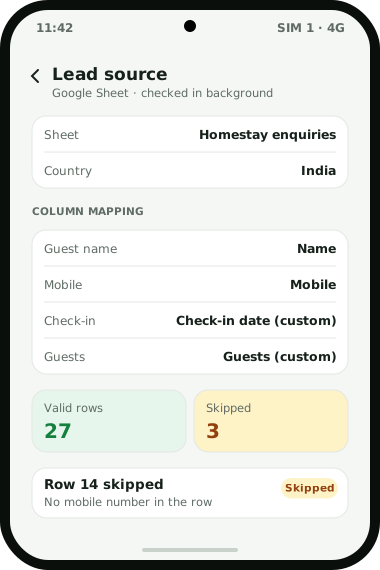
Weo Dialer takes leads from Google Sheet to CRM without anyone copying rows: a connected sheet is rechecked in the background on a set schedule, and each new row becomes a lead that a caller can ring. During setup you match the sheet’s columns to Weo Dialer’s built-in fields and to any custom fields you have added, and you set the country for that source so numbers written without a country code are read correctly. Duplicate numbers are dropped on the way in. Rows that cannot be imported are listed with the exact reason, and you can look through a source’s valid and invalid rows as lead cards and clear out test entries before the team sees them. Each sheet lands as its own imported list that can be filtered, dialled or deleted, and deleting it removes only the leads that list added. A REST API can be connected the same way. Weo Dialer is a calling CRM app made by Weomate.
Google Sheet to CRM features
| Feature | What it does | Best for |
|---|---|---|
| Scheduled import | Rechecks a connected Google Sheet in the background on a schedule | Sheets that ad tools and website forms keep filling |
| Column mapping | Matches sheet columns to built-in and custom lead fields | Sheets with their own headings, such as “Course” or “Budget” |
| Country per source | Reads numbers by the country you set for that sheet | Numbers typed without +91 |
| Duplicate check | Drops repeated numbers and handles country codes on import | Sheets where the same person filled the form twice |
| Skipped rows with reasons | Lists every row that was not imported and why | Fixing the form or the sheet at the source |
| Inspect valid and invalid rows | Shows a source’s rows as lead cards and lets you remove test data | Clearing “test test” rows before calling starts |
| Imported list | Turns each sheet into a list you can filter, dial or delete | Running a session on one campaign’s leads |
| REST API source | Imports from any REST API on the same schedule | Portals and tools that offer an API instead of a sheet |
| Live sheet with round-robin | Shares leads from a live sheet source across the team in the Web CRM | Teams that want new rows split between callers |
Google Sheet CRM template vs a calling CRM
Plenty of small teams run sales from a Google Sheet CRM template: a column for the name, one for the phone number, one for status and one for the next date. For one person with a short list it is fine. It breaks in predictable ways once a team shares it:
- Status turns into free text. “Interested”, “intrested”, “int” and “call later” all mean roughly the same thing, and no filter catches all four.
- Sorting is shared. One person sorts by date, and the row everyone else was working on moves.
- Numbers lose their format. A number stored as a figure drops its leading zero or plus sign, and the next caller dials it wrong.
- The next date never rings. A date in a cell is a record, not a reminder.
The fix is not to throw the sheet away. Many sheets are filled automatically by ad tools and forms, and that part works. Keep the sheet as the place leads arrive, and do the calling, remarks and follow-ups in Weo Dialer, which reads the sheet on its own. How Meta form leads reach a sheet in the first place is explained in Facebook lead ads to CRM.
Google Sheet to CRM column mapping
Mapping is done once per source. A sheet imports cleanly when it has one header row, one lead per row, and a column that holds the mobile number. Map that column to the phone field, the name column to the name, and everything else either to a built-in field or to a custom field you create for it, such as “Check-in date” or “Loan amount”. Custom fields later show up in the shared lead filter, so a caller can pull every lead with a particular value.
Set the country on the source. A sheet of Indian leads typed as ten-digit numbers is then read as Indian numbers, and duplicates written once with +91 and once without are recognised as the same person. Once the first rows arrive, open the valid and invalid rows view, delete any test leads, and read the skipped list: a row skipped for a missing number usually means a form field is optional when it should not be. Where the leads come from a marketplace’s API instead of a sheet, the same mapping applies; the IndiaMART lead management page shows one such source.
Google Sheet to CRM setup
- Tidy the sheet: one header row, one lead per row, a phone column.
- Add the sheet as a lead source in Weo Dialer.
- Map the columns to built-in and custom fields, and set the country.
- Check the first import: valid rows, invalid rows and the skipped list with reasons.
- Remove test data, then assign the new list or let callers dial it; how leads are shared across a team is on the lead distribution software page.
- Leave it running. New rows keep arriving on the schedule.
Google Sheet to CRM example
An illustration with round numbers, not a customer result.
A group of homestays near Dehradun takes booking enquiries through a website form that writes to a Google Sheet, about 30 rows a day in the season. Two reservation staff used to keep the sheet open all day, scroll to the newest rows, and copy each number into their phones.
The sheet is now a lead source in Weo Dialer, with name and mobile mapped to built-in fields and “Check-in date” and “Guests” mapped to custom fields, country set to India. On the first import, 27 rows come in as valid leads, 3 are skipped for missing numbers, and two “test booking” rows from the web developer are removed from the valid list. From then on the staff start a calling session on the imported list each morning and again after lunch, while the sheet keeps filling on its own. The skipped reasons lead the developer to make the mobile field compulsory on the form.
Google Sheet to CRM limits
Pick another route if:
- You need the sheet updated from the CRM. Writing back to the sheet is not described here; use CSV export or a CRM API push instead.
- You need every row the second it lands. Imports run on a schedule, not instantly; ask on WhatsApp about the check interval.
- Your data is a one-off file. An Excel, CSV or JSON file can simply be imported, without connecting a source.
- The sheet itself is messy. Mapping cannot guess a number that was never typed; fix the form that fills the sheet first.
Try Weo Dialer
Message us on WhatsApp. We share the app and help you set it up.
Get the app on WhatsAppWhatsApp +91 95940 94140
Google sheet to CRM FAQ
Which CRM imports a Google Sheet automatically?
The best Google Sheet to CRM route for a calling team is one that keeps checking the sheet on its own, and Weo Dialer does that. A connected sheet is checked in the background on a schedule, so new rows reach the callers without anyone exporting or pasting them.
Is Weo Dialer a Google Sheet to CRM tool?
Weo Dialer is a Google Sheet to CRM importer inside a calling CRM. Rows become leads with mapped fields, and the same app then dials them, records each call and rings for every follow-up.
Is a Google Sheet CRM template enough for a sales team?
A sheet template works for one person with a short list. It starts to fail when several callers share it, because statuses get typed in different ways, callbacks sit in a column nobody is reminded about, and the sheet cannot tell who actually called whom.
What happens to rows that fail to import?
They are listed as skipped, each with the exact reason, such as a missing number. You can also inspect a source's valid and invalid rows as lead cards and remove test data before callers see it.
Can I import leads from a REST API instead of a sheet?
Yes. Any REST API can be connected the same way, checked in the background on a schedule, with its own column mapping and country setting.
Does Weo Dialer write updates back to the Google Sheet?
Writing back to the sheet is not described here; the import brings rows into Weo Dialer. To get data out, export leads to CSV, which follows the active filter, or connect a third-party CRM API to receive call and CRM data.