 Weo Dialer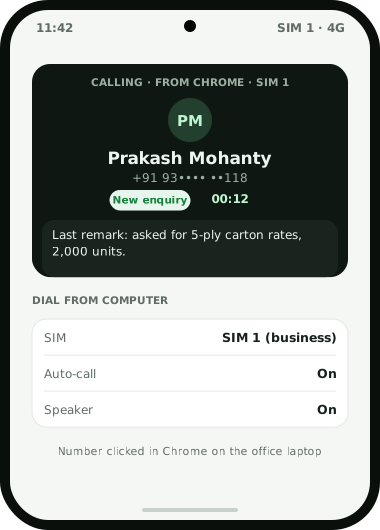
Click to call from Chrome in Weo Dialer joins the computer you read leads on with the phone you call them from. Click a phone number in Chrome on the computer and the phone running Weo Dialer dials it, as an ordinary call on the phone’s SIM. Three settings shape what happens next: which SIM the call uses, an auto-call setting for whether the phone starts the call by itself, and whether the call opens on speaker. Because Weo Dialer is the phone’s dialer, a call started from Chrome behaves like any call made on the handset. The lead’s name, status and last remark appear on the call screen, the after-call sheet takes the status, remark and next follow-up in two taps, and the call stays in the call history. Customers see your usual mobile number. Nothing is dialled through the browser itself, so no headset or internet calling plan is involved. Weo Dialer is the calling CRM app built by Weomate.
Click to call from Chrome features
| Feature | What it does | Best for |
|---|---|---|
| Click a number in Chrome | The phone running Weo Dialer dials the number you clicked | People who find leads on a computer |
| SIM setting | Chooses which SIM places calls sent from Chrome | Dual-SIM phones with a business SIM |
| Auto-call setting | Decides whether the phone starts the call on its own | Desk work with both hands on the keyboard |
| Speaker setting | Opens the call on speaker | Typing notes while you talk |
| Ordinary SIM call | Goes out on the mobile network under your plan | Customers who answer known mobile numbers |
| Call screen | Shows the lead’s name, status and last remark | Knowing who it is before they say hello |
| After-call sheet | Saves status, remark and follow-up in 2 taps | Keeping the record without another window |
| Call history | Keeps the call with every other call on the phone | Team logs and call analytics |
Click to call from Chrome for desk work
Plenty of selling starts at a desk. An office coordinator reads buyer enquiries in a marketplace seller panel, a property agent checks portal responses, an accountant goes through overdue invoices in the browser. Each of them then picks up a mobile phone and types ten digits by hand, reading them off the screen. It is slow, and a single wrong digit means calling a stranger.
Clicking the number in Chrome removes that step. The phone, propped beside the keyboard, starts the call on the business SIM, and with the speaker setting on, the coordinator can keep typing while the customer talks. When the call ends, the after-call sheet on the phone records the outcome, so the result is kept on the lead instead of in a browser tab. Sellers who work enquiries from marketplace panels will find the lead side on the IndiaMART lead management and Justdial leads CRM pages.
Click to call from Chrome vs browser calling
Click-to-call tools come in two kinds, and they suit different teams.
Browser softphones place the call over the internet from the computer, usually with a headset and a virtual or cloud number. They suit large call centres with seats and managed lines.
Phone-based click to call, the way Weo Dialer works, uses the computer only to pick the number. The call itself is a mobile call from the phone’s SIM, so customers see a familiar mobile number, calls are billed under your existing plan, and the call is recorded in the phone’s CRM like every other. The trade-off is that the phone has to be nearby, switched on and in signal. Teams deciding between their own SIM and virtual numbers will find the comparison on the dialer app for business page.
Click to call from Chrome setup
- Install Weo Dialer on the phone and make it the default phone app through the guided setup.
- Choose the settings for computer calls: the SIM, auto-call and speaker.
- Link Chrome on the computer to the phone. Ask on WhatsApp for the current steps; the team helps with setup.
- Test with a number you own, such as a colleague’s phone, to see the call start.
- Work your enquiries from Chrome, saving each outcome on the after-call sheet.
Click to call from Chrome example
An illustration with round numbers, not a customer result.
A corrugated box maker in Bhubaneswar has one sales coordinator who spends the morning on a laptop, going through about 60 buyer enquiries from a B2B marketplace panel and from email. She used to read each number off the screen and type it into her phone, and two or three calls a day reached the wrong person because of a mistyped digit.
Now the phone sits on a stand beside the laptop with Weo Dialer set to SIM 1, the business SIM, and speaker on. She clicks a buyer’s number in Chrome, the phone dials it, and while the buyer explains the box size and quantity she types the specification into the quote sheet. When the call ends she picks “Quote to send” on the after-call sheet and sets a follow-up for 4 pm. The afternoon follow-ups then run as one session from the phone, the way the auto dialer app page describes.
Click to call from Chrome limits
Weo Dialer is the wrong choice when:
- You want calls to run through the browser. There is no browser softphone; the phone places every call.
- You work mainly in another browser. The feature is described for Chrome; ask first about others.
- You need to dial a long list. Clicking suits the odd number while reading; for a list, an auto dialer session on the phone is faster.
- The phone is not with you. The computer only picks the number, so the phone must be nearby, on and in signal.
- Your team uses iPhones. Ask on WhatsApp how dialling from the computer works there before relying on it.
Try Weo Dialer
Message us on WhatsApp. We share the app and help you set it up.
Get the app on WhatsAppWhatsApp +91 95940 94140
Click to call from chrome FAQ
Which click to call from Chrome tool uses my own SIM?
The best click to call from Chrome setup for teams that call on mobile numbers is one where the call leaves from the phone's SIM, and Weo Dialer works that way. Customers see your usual mobile number, and on a dual-SIM phone a setting picks which SIM is used.
Is Weo Dialer a click to call from Chrome extension?
Weo Dialer is a click to call from Chrome setup that ends on your phone, not in the browser. You click a number in Chrome on the computer and the phone running Weo Dialer dials it. Ask on WhatsApp for the current steps to link Chrome with the phone.
Does click to call work in browsers other than Chrome?
This feature is described for Chrome. Ask on WhatsApp before you plan around Edge, Firefox, Safari or another browser.
Why is click to call from Chrome not working?
Check that the phone is switched on with Weo Dialer set as its phone app, and that the SIM chosen in the settings is active and has signal. If calls still do not start, the in-app support chooser connects you to basic support or tech support on WhatsApp.
Is a call started from the computer saved like other calls?
Yes. Weo Dialer places the call on the phone, so it lands in the call history and on the lead in the same way as a call dialled on the handset, and the after-call sheet is there for the status, remark and follow-up.